
Live gesture trails
Follow your gesture as you draw, and adjust the trail color, width, and corners to suit your display.
Draw a gesture. Run your shortcut.
Hold the right mouse button and draw. Press keys, run macOS Shortcuts, open links, or arrange windows. Give each app its own gestures.
macOS 26 or later · Free plan available
Features
Use familiar macOS controls to create gestures, set application rules, and check the permissions each feature needs.
Follow your gesture as you draw, and adjust the trail color, width, and corners to suit your display.
Create different gestures per app while keeping global defaults for everything else.
Run macOS Shortcuts, press keyboard combinations, arrange windows, open links, or launch apps from a gesture.
Product tour
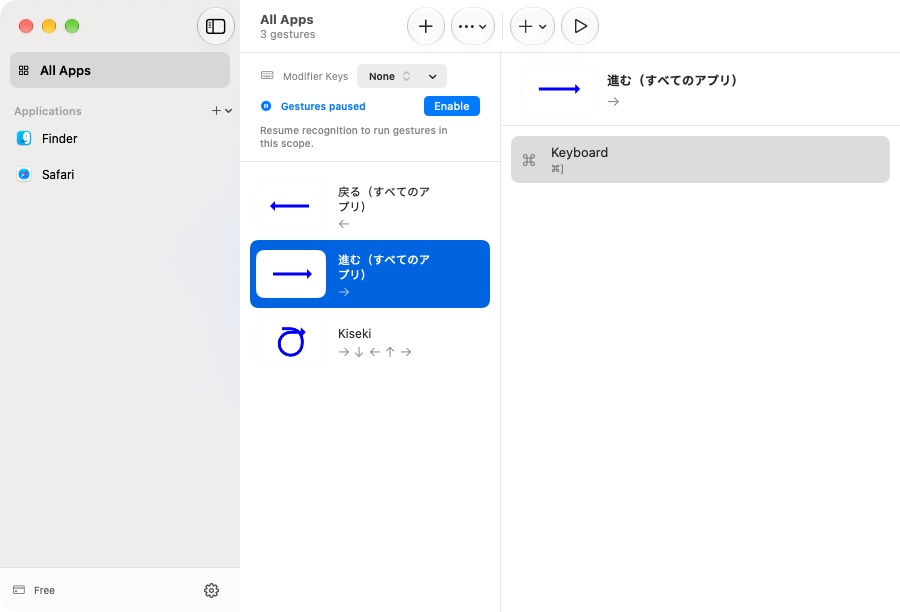
Choose an app and assign an action. Hold the right mouse button, draw your gesture, then release to run it.
Edit gestures and their actions, or share them as preset files.

A gesture trail drawn over Safari
Pricing
Start with the free plan. A paid license removes the three-application limit and works on up to five Macs.
All actions, global gestures, and preset import/export are included. Register up to three apps for app-specific rules.
US$9.99 per year
Renews yearly · cancel anytime
Register as many applications as you need while your subscription is active. Manage renewal from the link in your receipt.
US$21.99
Includes all future updates
A one-time purchase for unlimited app profiles, with future Kiseki updates included.
Checkout opens in a secure browser window, automatically applies taxes for your region, and comes with a 30-day money-back guarantee.
Download
macOS 26 or later · Accessibility permission required
Open the disk image, drag Kiseki to Applications, and launch it. Follow the Accessibility prompt, then start with the sample gestures under All Apps. You can preview a new gesture with Record in the gesture editor.
brew install --cask naviapps/tap/kiseki
FAQ
Gesture actions and global rules are available on Free. You can register up to three apps for app-specific settings, including the initial Finder and Safari profiles. Global rules also work in unregistered apps. A current yearly or lifetime license removes the app-profile limit and can be activated on up to five Macs.
In Settings > Permissions, confirm Accessibility is allowed. In General, check Enable Gesture Recognition and any Required modifiers. Use Record in the gesture editor to try a right-drag without running an action. If a pattern is captured but its action fails, check the target app’s rules and the permission required for that action.
Open Billing to check purchase availability. When checkout is open, choose a plan and activate Kiseki with the license key from your receipt.
Use GitHub Issues in the footer for technical reports, or Email support for account and billing help. For a bug, include the steps to reproduce it and the text from Settings > Support > Copy version info. Keep license keys, payment details, and personal information out of public issues.
Gesture settings stay on your Mac. Use the application or gesture menus to export and import presets.
See the billing page for current activation limits. Deactivate an old machine from Settings > License to free a seat before activating on another Mac.
Use the Manage Subscription link in your purchase receipt to cancel renewal. If you cannot find it, contact support with your order number.
Gesture recognition runs locally. Configured release builds may send scrubbed crash reports. Gesture content, shortcuts, clipboard contents, and license keys are not crash-reporting inputs. See the Privacy Policy for details.
Email support@kisekiapp.com. We aim to reply within two business days in English or Japanese.
Yes. If Kiseki is not for you, send your order number to support within 30 days and we will issue a full refund.